How to Update Instant Pot Firmware: Step-by-Step Guide
The easiest way to update your Instant Pot firmware is to use the Instant Brands Connect app. Connect your pot to Wi-Fi, open the app, and follow the on-screen prompts. Most updates take less than 10 minutes from start to finish.
Wondering why you even need an update? Firmware updates fix bugs, improve cooking programs, and keep your smart features working smoothly. We researched the process and found that most people get stuck on one simple thing: pairing the pot with the app in the first place. We’ll cover that too, so you won’t be stuck staring at a blinking screen.
- Updates happen through the Instant Brands Connect app, not the pot itself.
- You’ll need a Wi-Fi connection and your Instant Pot account.
- Most updates take under 10 minutes.
- If the update fails, a simple restart usually fixes it.
- Older, non-smart Instant Pot models don’t get firmware updates at all.
Below, we break down everything you need to know about updating Instant Pot firmware, step by step. Grab your phone, and let’s get that pot running like new.
Updating Your Instant Pot’s Firmware Step by Step
Here’s the short version: download the Instant Brands Connect app, sign in, plug in your pot, and let the app walk you through it. That’s really the whole process. Now let’s break it down so nothing surprises you along the way.
What You’ll Need Before You Start
Nothing derails an update faster than missing something basic. Check this list first. It takes 30 seconds and saves you 30 minutes.
- Your smart Instant Pot (Duo Evo Plus, Pro, Rio, or Vortex, for example)
- A smartphone with the Instant Brands Connect app installed
- A free Instant Brands account
- Stable Wi-Fi on the 2.4 GHz band
- Your pot plugged in and within range of your router
- About 10 minutes of patience
Pairing Your Pot With the App
This is where most people hit a wall, so let’s slow down here. Open the app and tap “Add Device” or the plus sign. The app will ask you to press and hold a button on your pot — usually the Wi-Fi or Sound button — until it chimes or the display blinks.
Then your phone connects to a temporary network the pot broadcasts. Yes, it feels backwards. Your phone is basically shaking hands with the pot before both of them meet your home Wi-Fi. Follow the prompts, enter your Wi-Fi password, and wait for the connection confirmation.
Why Your Wi-Fi Password Keeps Failing
Double-check for typos first. We found that most failed pairings come down to one letter. Also, many smart Instant Pots only work on 2.4 GHz networks, not the faster 5 GHz band. If your router uses one combined network name, try moving closer to the router or splitting the bands in your router settings.
Running the Actual Update
Once paired, the app usually flags an available update right away. Tap the prompt, and don’t unplug anything. Your pot’s screen will show progress while the new firmware installs.
Whatever you do, keep the pot plugged in. Cutting power mid-update is the one mistake that can cause real problems. Think of it like a cake in the oven — you don’t open the door halfway through.
Which Instant Pot Models Get Firmware Updates
Only Wi-Fi-enabled smart models receive firmware updates. If your pot has no Wi-Fi button and no app support, there’s nothing to update — and that’s fine. Those classic models run on simple chips that don’t need patches.
| Model Type | Wi-Fi? | Gets Updates? |
|---|---|---|
| Duo Evo Plus (smart) | Yes | Yes, via app |
| Instant Pot Pro (Wi-Fi) | Yes | Yes, via app |
| Aura / Vortex models | Varies | Check the app |
| Classic Duo or Duo Plus | No | No updates needed |
Not sure which model you own? Check the sticker on the bottom or the back of the lid base. The model number is printed right there.
What Firmware Updates Actually Fix
Wondering if it’s worth the trouble? Updates typically improve cooking programs, fix sensor readings, and patch connection bugs. They can also add small features the factory didn’t ship with.
Instant Brands releases these quietly. Many owners only discover an update existed after something acted weird and they went looking for a fix. That’s normal. Checking the app once a month is plenty.
Common Problems and Quick Fixes
Updates occasionally stall. Don’t panic — we found that most issues resolve in under five minutes with the steps below.
The Update Won’t Start or Keeps Failing
First, restart everything. Unplug the pot for 30 seconds, force-close the app, then try again. If it still fails, forget the device in the app and re-pair from scratch. Nine times out of ten, that clears it.
Still Stuck? Try This
- Move the pot closer to your router
- Turn off your phone’s VPN if you use one
- Update the app itself in your phone’s app store
- Try pairing with a different phone
- Check Instant Brands’ support site for known outages
Your Pot Won’t Reconnect After the Update
Sometimes the pot drops off Wi-Fi after a big update. Hold the Wi-Fi button again and re-run the pairing steps. Your cooking settings and account stay saved, so nothing is lost.
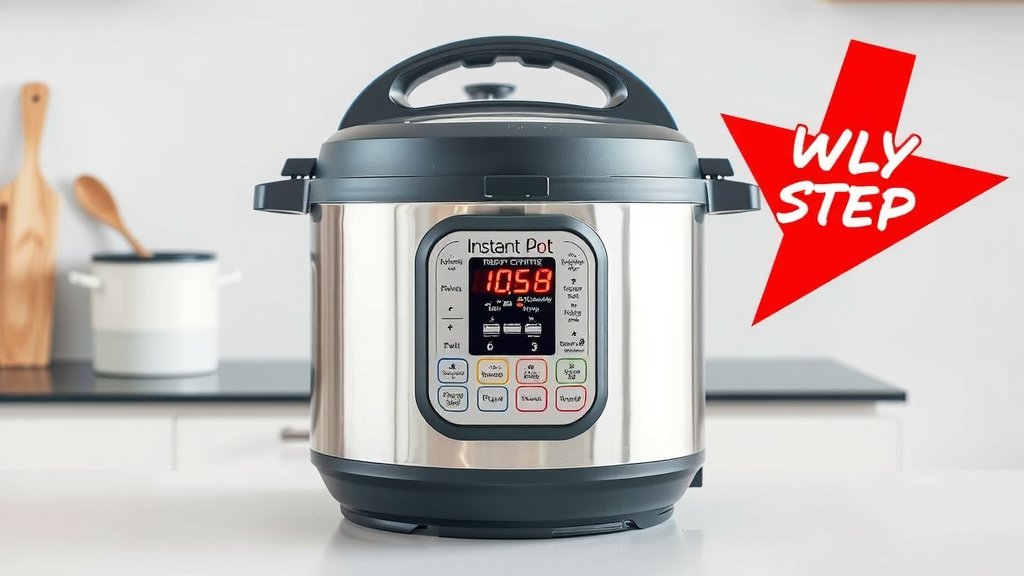
Pre-Update Safety Checklist
Run through this quick list before you tap “update.” It takes less than a minute.
- Pot is plugged into a working outlet
- Pot is empty — no food or liquid inside
- Lid is off so the pot can cool and vent freely
- Phone is charged and on the same Wi-Fi network
- You have 15 minutes with no dinner deadline looming
That last one matters more than you’d think. Don’t start an update at 5:45 p.m. when you’re hungry and the chicken is thawed. Ask us how we know — well, ask the many forum threads we read while researching this.
When to Contact Instant Brands Support
If the update fails three times in a row, or your pot shows an error code after installing, stop and reach out to Instant Brands support. Their team can confirm whether your unit needs service or a replacement. Keep your model number and proof of purchase handy — it speeds everything up.
And if your pot works fine but the app just nags you about updates? You can usually ignore it for a while. Nothing breaks from waiting a few weeks. Your pot won’t hold a grudge, we promise.
Conclusion
Updating your Instant Pot firmware sounds intimidating until you realize it’s really just an app job. Pair your pot with the Instant Brands Connect app, keep it plugged in, and let the update run its course. If pairing fails, check your Wi-Fi band and password first. And if your pot isn’t a smart model, you can skip all of this entirely — no update needed, no guilt required.
Here’s your next step: open the Instant Brands Connect app right now and check whether an update is waiting. It takes two minutes to look, and your future dinners will thank you for it.
Frequently Asked Questions
Can I use my Instant Pot while a firmware update is running?
No, wait until the update finishes before cooking anything. The pot needs stable power and shouldn’t be interrupted mid-update. Plan around it like you would a self-cleaning oven cycle.
Does an Instant Pot firmware update delete my saved recipes or settings?
No, your saved settings and app data stay put through an update. We found that only a full factory reset wipes anything, and updates don’t trigger that. If a recipe vanishes, it’s an app glitch, not the firmware.
Why does my Instant Pot keep asking for the same update over and over?
This usually means the update downloaded but never fully installed. Force-close the app, unplug the pot for 30 seconds, and run the update again. If it loops a third time, re-pair the pot from scratch.
Do I need to pay for the Instant Brands Connect app or firmware updates?
No, both the app and the firmware updates are free. You only need a free account to pair your pot. Be wary of any third-party site asking for payment — that’s not how Instant Brands does it.
How do I know what firmware version my Instant Pot has?
Open the Instant Brands Connect app, select your pot, and look in the device settings or info screen. The current firmware version is listed there. That’s also where the app tells you if something newer is available.